1. Markdown Tutorial#
This is a tutorial document in Markdown format, mainly used for practicing Markdown files. The article was written hastily, so if there are any deficiencies or errors, please point them out. Thank you for your understanding and support.
1.1 Markdown Directory#
TOC will automatically generate a directory for the current document. The directory is based on the titles of the current document. Wherever TOC is written in the document, the directory will appear there.
Some websites do not support TOC functionality.
1.2 Markdown Text Decoration#
In a Markdown document, you can add bold, italics, strikethrough, and underline to text. Of course, these effects can also be combined. For example, it is more appropriate to use italics for English, such as: This is a test markdown text. When we find that the content we have written is misleading or obviously incorrect, we can use strikethrough to delete the text, such as:
The sun rises from the east. In addition to using bold text to emphasize, you can also use a horizontal line to draw a line through the sentence, for example: Using this method can achieve the goal of drawing a horizontal line.
1.3 Markdown Horizontal Line#
In a Markdown file, a horizontal line is created using three asterisks or three dashes. You can see the specific effect between my titles.
1.4 Lists#
- Ordered List
An ordered list is created using numbers and dots. This is easy to understand because our usual task list is similar in format. For example, there are several steps to put an elephant into a refrigerator:
- Open the refrigerator door.
- Put the elephant into the refrigerator.
- Close the refrigerator door.
- Unordered List
An unordered list is very simple, just use a plus or asterisk to achieve it. It's the same example as before.- Open the refrigerator door.
- Put the elephant into the refrigerator.
- Close the refrigerator door.
- Todo List
A todo list is mainly used to indicate whether something is completed. For example, the following content:- [] Build a blog website.
- [] Review calculus and mathematical logic.
- Slack off.
- Nested List
I don't think this part needs any teaching. It's really simple. Just use a tab before the next line.
1.5 Blockquote#
- Level 1 Blockquote
A blockquote is indicated by a greater-than sign. For example, my sentence below:
With a cold stare, I face the finger-pointing of thousands, and I willingly bow my head like a young ox.
- Multi-level Blockquote
The number of greater-than signs determines the level of the blockquote. You can try it yourself.
1.6 Code Blocks#
There are two ways to use code blocks: inline code and multi-line code. Here are some specific examples:
- Inline Code
The first lesson in C language isHello, World. - Multi-line Code
	int a, b, c;
	scanf("%d", &a, &b);
	c = a + b;
	printf("%d", c);
Note: If you want to achieve indentation and formatting for multi-line code, there must be a blank line before it, and each line must have a tab.
1.7 Tables#
The writing method of tables is also relatively easy. Use vertical bars to separate different cells, and use horizontal lines to separate the header and other rows. Let me give you an example based on the classification of genetic diseases:
| Common Genetic Diseases | Examples |
|---|---|
| Monogenic Genetic Diseases | Albinism, Congenital Deafness |
| Polygenic Genetic Diseases | Diabetes, Hypertension |
| Chromosomal Diseases | Down Syndrome |
| Somatic Cell Genetic Diseases | Malignant Tumors |
| Mitochondrial Genetic Diseases | Leber's Hereditary Optic Neuropathy |
1.8 Hyperlinks#
- Representation
The representation of hyperlinks is as follows:
Link Text, so what you actually see is only the text, but the text is actually linked to a URL. For example:[My Blog](https://kkkk33t.github.io/) - Direct Display of Links
Use <> to enclose the link address. For example:<https://www.baidu.com/> - Using Anchors
To use anchors, first define the anchor and then reference it. I will provide a more detailed explanation of using anchors in the next update.
1.9 Images#
There are four ways to insert images:
- Inserting local images
- Inserting web images
- Storing images in Markdown files
- Using HTML
<img>tags
The basic format for introducing images is
. You can choose the method that suits you.
1.9.1 Inserting Local Images#
 For example: 
Note: The path here can be relative or local.
1.9.2 Inserting Web Images#

This method is considered the best, but the key is the choice of image hosting. I will provide a more detailed explanation of image hosting in the next update.
1.9.3 Storing Images in Markdown Files#
Storing images in Markdown files in base64-encoded form will increase the file size, but the advantage of this method is that the image can be embedded directly in the document without the need to reference another image file. Here are the specific steps:
Convert the image to be stored in the Markdown file to base64 encoding format. You can use online tools to do this, for example:
https://www.base64-image.de/
Add the following syntax to the Markdown file:
 where Description is the text description of the image and base64-encoded content is the base64 encoding string obtained in the first step.
If there are multiple images that need to be stored in the Markdown file, you can declare the base64 strings of the images separately, for example:
[Image 1]: data:image/png;base64,base64-encoded content 1 [Image 2]: data:image/png;base64,base64-encoded content 2
Insert images in the body content:
![Description 1][Image 1] ![Description 2][Image 2]
This method is not very convenient and has a very low frequency of use. It is not recommended.
1.9.4 Using HTML <img> Tags#
I personally think this is a very good method because it is convenient to control the size of the image. I am still studying how to adjust the size of the images in the previous methods. Please refer to my future updates for specific information.
Example:
<img src="https://cdn.jsdelivr.net/gh/kkkk33t/cdntc/*img/*wallhaven-m3ppwy.jpg" width=100/>
1.9.5 Supplement: Changing the Image Size Using the <img> Tag, Supporting Width, Height, Alignment, and Other Attributes.#
<img src="https://img-blog.csdnimg.cn/b937aa6a992d47d9b205f519bcbbc111.png" width="600" />
Note: The numerical values after the attributes can also be written as percentages, such as width="60%".
For images with specified dimensions, both width and height need to be specified: width="600", height="600".
For images where the width is determined and the height is proportional, only width needs to be specified: width="600".
For images where the height is determined and the width is proportional, only height needs to be specified: height="600".
1.9.5.1 Adjusting Alignment Method 1#
You can modify the alignment of the image by adding the align="center" attribute inside the <img> tag.
<img src="https://img-blog.csdnimg.cn/b937aa6a992d47d9b205f519bcbbc111.png" align="right" width="600" />
Note: This method can also achieve the effect of placing text on the left and the image on the right, or placing text on the right and the image on the left.
Center alignment: align="middle". Note that it does not work properly when tested in CSDN.
Left alignment: align="left".
Right alignment: align="right".
1.9.5.2 Adjusting Alignment Method 2 (Recommended)#
You can also modify the alignment of the image by wrapping the <img> tag in <p align="center">...</p> tags.
<p align="center">
<img  src="https://img-blog.csdnimg.cn/b937aa6a992d47d9b205f519bcbbc111.png" width="400" />
</p>
This method can also achieve the layout of multiple images side by side. Just add multiple
<img>tags inside the<p align="center">...</p>tags. The number of images per row will be automatically adjusted based on the size of the images and the size of the browser window.
<p align="center">
<img  src="https://img-blog.csdnimg.cn/b937aa6a992d47d9b205f519bcbbc111.png" width="400" />
<img  src="https://img-blog.csdnimg.cn/b937aa6a992d47d9b205f519bcbbc111.png" width="400" />
<img  src="https://img-blog.csdnimg.cn/b937aa6a992d47d9b205f519bcbbc111.png" width="400" />
<img  src="https://img-blog.csdnimg.cn/b937aa6a992d47d9b205f519bcbbc111.png" width="400" />
</p>
Note: This method is effective for both single and multiple images. When inserting images using HTML,
align=can be omitted, but it cannot be omitted when aligning the image to the right.
1.9.5.3 Achieving Left Image and Right Text or Left Text and Right Image#
You can achieve this by wrapping the <img> tag in <p>...</p> tags and adding the align="left" attribute inside the <img> tag.
(1) Left Image and Right Text
Note: The text that needs to be mixed with the image should be placed inside the <p>...</p> tags and below the <img> tag. The layout outside the <p>...</p> tags will be the normal top-to-bottom layout.
Left Image and Right Text: align="left"
Left Text and Right Image: align="right"
<img  src="https://img-blog.csdnimg.cn/b937aa6a992d47d9b205f519bcbbc111.png"  width="400"  align="left" />
The text is on the right and the image is on the left. The text is on the right and the image is on the left. The text is on the right and the image is on the left. The text is on the right and the image is on the left. The text is on the right and the image is on the left. The text is on the right and the image is on the left. The text is on the right and the image is on the left. The text is on the right and the image is on the left. The text is on the right and the image is on the left. The text is on the right and the image is on the left. The text is on the right and the image is on the left. The text is on the right and the image is on the left. The text is on the right and the image is on the left. The text is on the right and the image is on the left. The text is on the right and the image is on the left. The text is on the right and the image is on the left. The text is on the right and the image is on the left.
</p>
(2) Left Text and Right Image
<p>
<img  src="https://t.mwm.moe/fj"  width="400"  align="right"  />
The text is on the left and the image is on the right. The text is on the left and the image is on the right. The text is on the left and the image is on the right. The text is on the left and the image is on the right. The text is on the left and the image is on the right.
</p>
1.9.5.4 Adding Captions to Images#
Figure 1. Lena
2.0 Superscript and Subscript#
Superscript is indicated by , and subscript is indicated by . For example:
Subscript: X<sub>2</sub>
Superscript: Y<sup>2</sup>
Subscript Text: X<sub>Subscript Text</sub>
Superscript Text: Y<sup>Superscript Text</sup>
The effect is as follows:
Subscript: X2
Superscript: Y2
Subscript Text: XSubscript Text
Superscript Text: YSuperscript Text
2.1 Abbreviations#
Abbreviations in text are indicated using the HTML <abbr> tag, as shown below:
<abbr title="Hyper Text Markup Language">HTML</abbr> is a markup language.
The effect is as follows:
HTML is a markup language.
2.2 Footnotes#
Using footnotes is a two-step process: defining footnotes and using footnotes.
The syntax for defining footnotes is as follows:
[^Footnote Name]: Footnote Content
Inside the square brackets, there is a caret (^) followed by the footnote name, followed by a colon (:), and then the footnote content. Footnote definitions are usually displayed at the end of the document, and multiple footnote definitions cannot be written on the same line. To use a footnote, simply add [^Footnote Name] after the text that needs annotation, as shown below:
Footnote Example[^note]
Footnote Example 2[^note2]
[^note]: This is an example footnote content
[^note2]: This is an example footnote content 2
The effect is as follows:
Footnote Example1
Footnote Example 22
2.3 Markmap Mind Map#
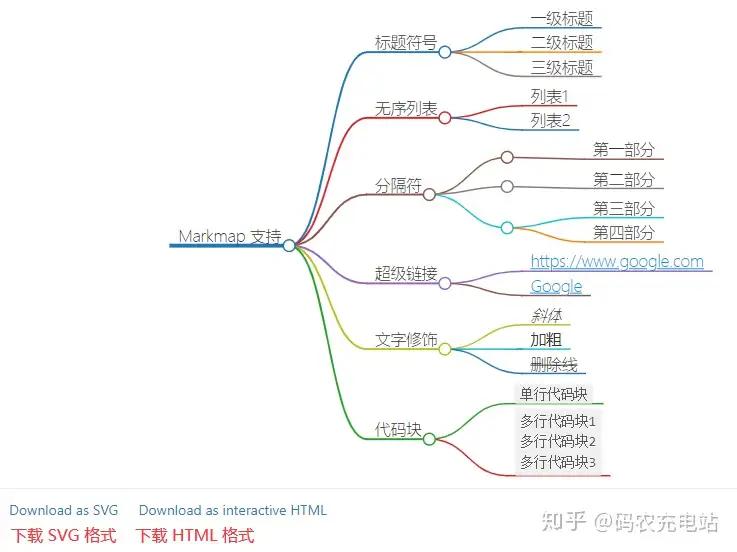
Markmap is a mind map tool that supports Markdown syntax. With Markmap, you can use Markdown syntax to generate mind maps. Markmap is open source, free, and easy to use. You can convert your Markdown documents into mind maps here.
In Markmap, the following Markdown symbols are supported:
-
Heading symbols #
-
Unordered list symbols -
-
Separator symbols ---
-
Text decoration, such as bold, italics, strikethrough
-
Code blocks, including inline code blocks and multi-line code blocks
Markmap supports: -
Heading symbols
- Level 1 heading
- Level 2 heading
- Level 3 heading
-
Unordered lists
- List 1
- List 2
-
Separator
- Part 1 ---- Part 2
- Part 3
- Part 4
- Hyperlinks
- <https://www.google.com>
- [Google](https://www.google.com)
- Text decoration
- Italics
- Bold
Strikethrough
Code blocks
-Inline code block-Multi-line code block 1 Multi-line code block 2 Multi-line code block 3
The effect is as follows: